Posts

Avoid Microsoft Excel deletes leading 0 in CSV files

Image
When  you open CSV document using Microsoft Excel,  if you have a column with numeric data and leading 0, Excel will automatically delete the 0 and convert it the field type to number. To avoid Excel doing this automatically,  there are several ways. For me,  the easiest way is by importing the CSV file instead of opening it straight in Excel. To do that, follow the steps below Open a blank Microsoft Excel document. Navigate to data tab on your toolbar. Click import data from text. Find your csv file and click import. Leave the default choices - file type as delimited, start import at row 1, and file origin: MS-DOS and press Next. On the next screen, tick comma under delimiter options. You can untick or leave tab as it is. Press next. On the last screen, change the column with leading zero numeric data format as text. To do this, simply click on the column and change the column data format as Text. Click finish.It will ask where do you want to put the data...

Dragonvale dragon track winning guide

Image
To make sure you win ever time you race on dragon track, follow the guide below: * Pay attention on the track name . For example on the picture below, the track name is Rime or Reason. * Select dragon based on this guide below: Blast Furnace - Fire, metal (Forge Dragon, Brass Dragon, Sulfur Dragon) Cherry Road - Fire, plant, earth (Cotton Dragon, Sakura Dragon, Carnival Dragon, Paper Dragon) Dramoria - Cold, metal (Mine Dragon, Steel Dragon, Bearded Dragon) Electric skies - Lightning, air (Sonic Dragon, Thunder Dragon, Butterfly Dragon, Liberty Dragon) Marsh Land - Plant, water, earth (Seaweed Dragon, Swamp Dragon, Bouquet Dragon) Shimmering Fault Line - Lightning, earth (Crystal Dragon, Quake Dragon, Cotton Dragon) Rime or Reason - Air, cold (Blizzard Dragon, Snow Dragon) Ulster Meadow - Earth, plant (Moss Dragon, Tree Dragon, Forest Dragon, Clover Dragon, Cotton Dragon, Mistletoe Dragon, Paper Dragon, Sakura Dragon, Carnival Dragon, Arbor Dra...

Delete a file that was uploaded via text editor in Moodle 2

Image
Start from Moodle 2.0, it changed how it is handling the file inside the system. For security reason, the file is not saved as it is anymore (not like 1.9). It will be encrypted and stored into chunks of files. When you uploaded a file (mostly media resources like audio, video or image) via text editor, if you decided not to use the file anymore, there is no way for the administrator to delete the file using FTP and there was no way for the teacher / content manager to delete the unused file via the text editor itself. If you uploaded a big file (like video) this will become a problem when you try to backup your course because the file will be included in the backup file which will bloat the size of the course backup file. This in my experience will slow down the backup process and also you will likely get the maximum execution time error if your server has low capacity. I searched Moodle.org to find the way to solve this. One of the post that I found is this: https://moodle.org/...

How to get responsive design in Moodle 2.6 clean install

Update: Moodle 2.7 is now using  Clean  theme by default, therefore this is not applicable anymore. Moodle in their release page, mentions one of their new updated main feature is the responsive design. I am getting excited, because with this new responsive design, user experience will be enhanced as the site will be responding to the device screen resolution size. But when I tried to install into my local development by downloading their latest stable release, the resolution is not changing based on the page size! Tried to access it using my mobile, and it still showing the same non responsive design. Then I tried to look the setting, under appearance, to see whether I need to enable responsive design setting first, but no luck. I can not find this setting anywhere. And then I tried to Google it. As this is a new release, so I still unable to find anyone that has the same problem as me (Or maybe it's just me being unlucky?) After trying for some times, finally I re...

Canon 550D with 17-55mm Tamron F2.8

Image
Here are the picture that I took after the 550D LCD cracked (which means I did not see the result until after I open it in my computer. Please click on the image to see the larger version of the picture.

Fix MYOB Required Administrator Account in Server 2008

Image
If your company use MYOB as their accounting system and you work in multi user Windows Server environment, probably you have this problem where MYOB always ask for administrator account to run whereas the accountant only given access as a normal user. In this case, I use MYOB version 19 and Microsoft Windows 2008. To solve this problem, you just need to do some little tweak: Make sure that the user have access to the folder where you install MYOB, to do that, go to the installed folder, right click, properties, go to security tab and add the user Open the folder where you installed your MYOB, find myob.manifest and then right click, choose open with notepad Change requestedExecutionLevel from: Highest Available to asInvoker as shown below. Save it, and re run MYOB. It should shut the UAC up :) This also a fix for someone that use several user account under Microsoft Windows 7/Vista.

Black screen on Chrome Browser when using Google Maps

Image
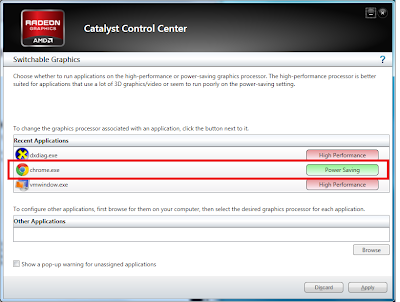
It happened when I tried to enable openGL (beta) when opening Google maps in Google Chrome from my work laptop.  I was using this openGL new feature from Google since last month in Firefox and Chrome from my home laptop and they were running pretty well. But for some reason, when I tried to enable it in my work laptop, the Google Chrome just showed a dark black page. There is nothing I can do because the screen is black. Tried to reset cookies and reset all settings back to default in Chrome with no avail. Solution 1 (If you still want to use OpenGL)  I then realized this laptop like some of new laptops have a hybrid display setting (my laptop is Dell Vostro 3550 with ATI Radeon Graphic Card) . Because I use  Google Chrome pretty often, that's why I set it to use the ATI Radeon instead of power saving Intel Graphic Card. So I turned the graphic option back to Intel (power saving), restart the browser and viola.. The maps show itself well. Interesting fact that ...